How to Create an Account
Last Updated: April 2026
Getting Started with CORE
The submission and management of articles are conducted through the ETFLIN Centralized Oversight and Review Ecosystem (CORE). To access the system, you must first create an account using your full name, email address, and a secure password.
Account Creation and Login
To begin, navigate to the Login Page at https://etflin.com/login or click the Sign In button located in the top-right corner of the navigation bar (Figure 1). If you do not yet have an account, on the Login Page, click the Create One button (Figure 2) to proceed to the Registration Page.
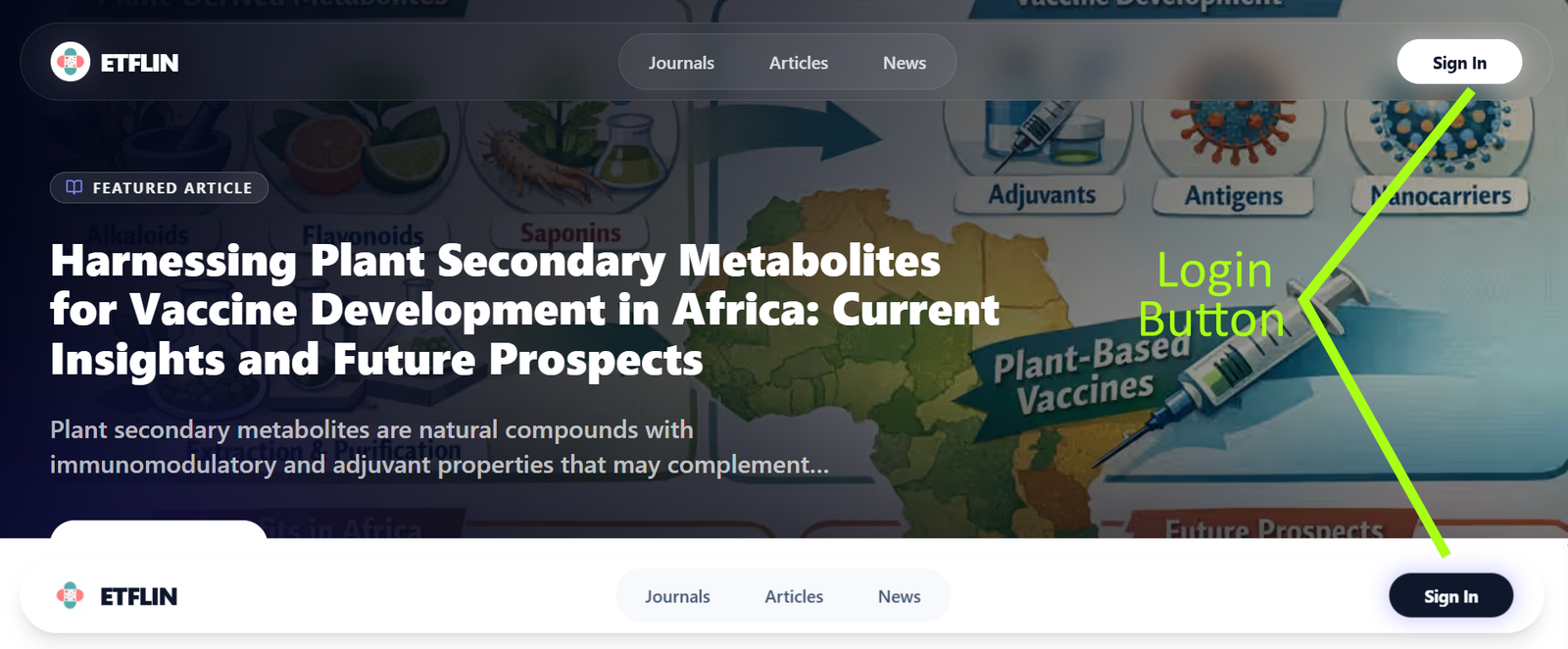
Figure 1. Position of the login button in the top-right corner. The background may appear white or black depending on the page you are currently viewing.
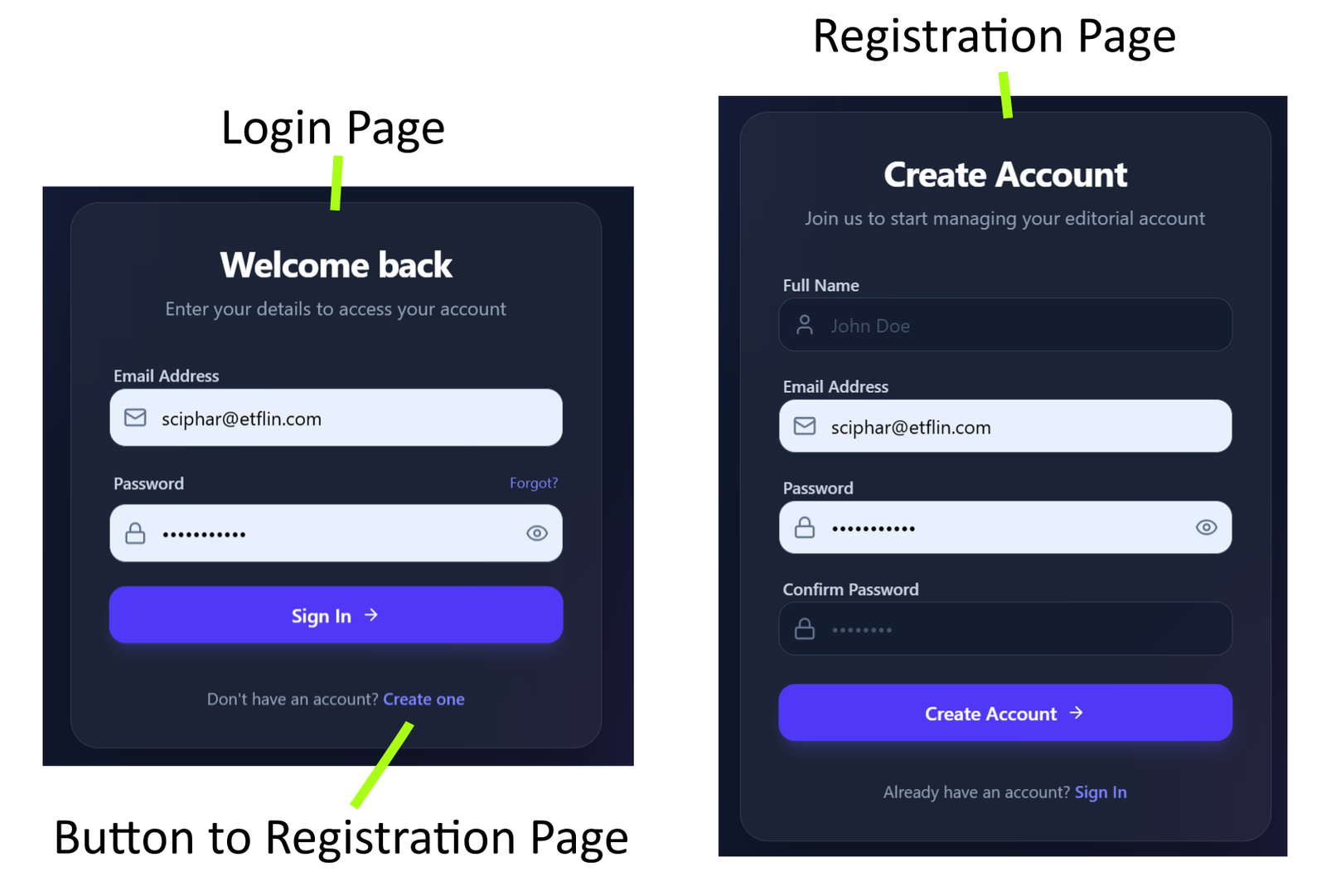
Figure 2. The layout of the login and registration forms.
The password must be at least 8 characters long. It is recommended to use a combination of lowercase letters, uppercase letters, numbers, and symbols to make your password more secure.
Complete all required fields on the registration form and click Create Account. The system will validate your information and display a notification in the top-right corner of the screen. A successful registration is indicated by a green notification with Code 200 (Figure 3). A red notification indicates that an error has occurred during the process.
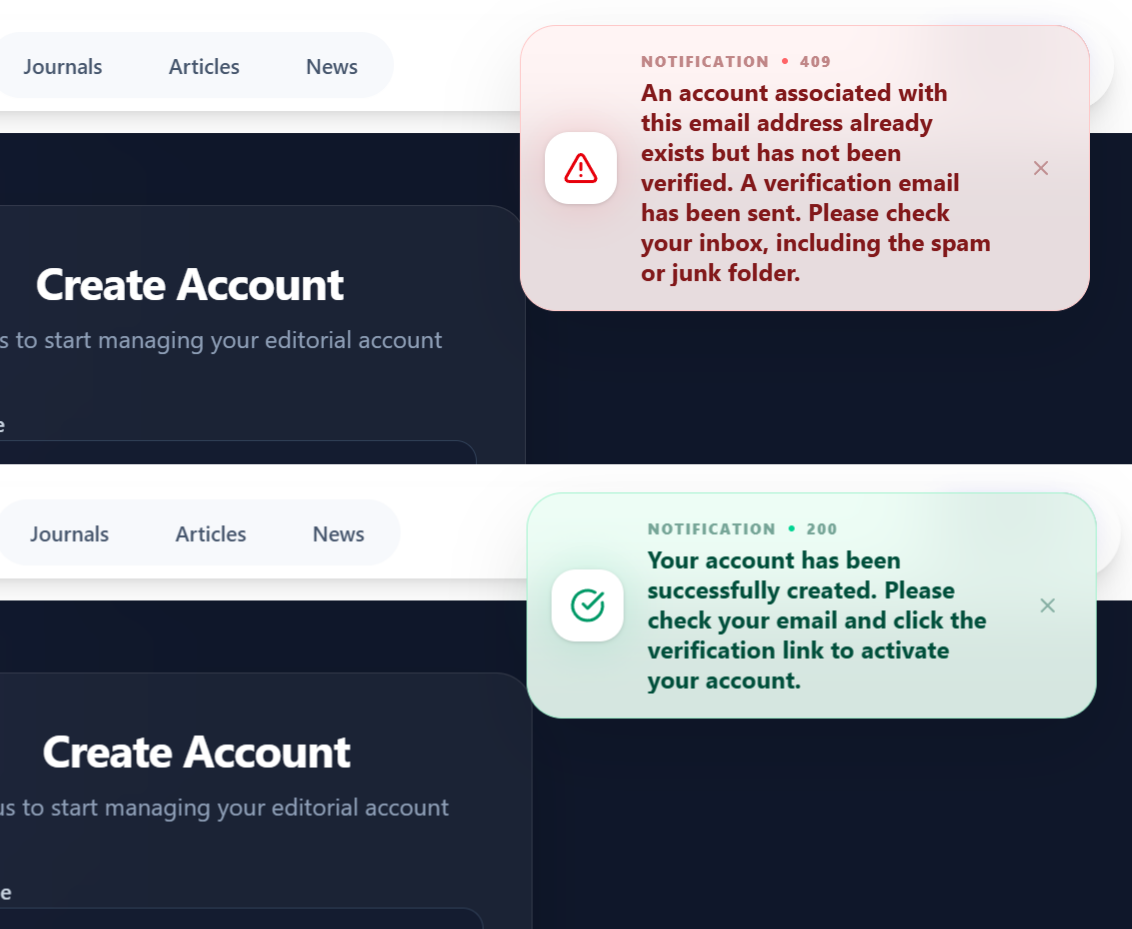
Figure 3. Examples of system notifications regarding the registration process.
Email Verification
Upon successful registration, a verification link will be sent to your registered email address (Figure 4). To activate your account, click the Verify button or copy the provided link into your browser. Ensure that the 6-digit verification code at the end of the URL is included.
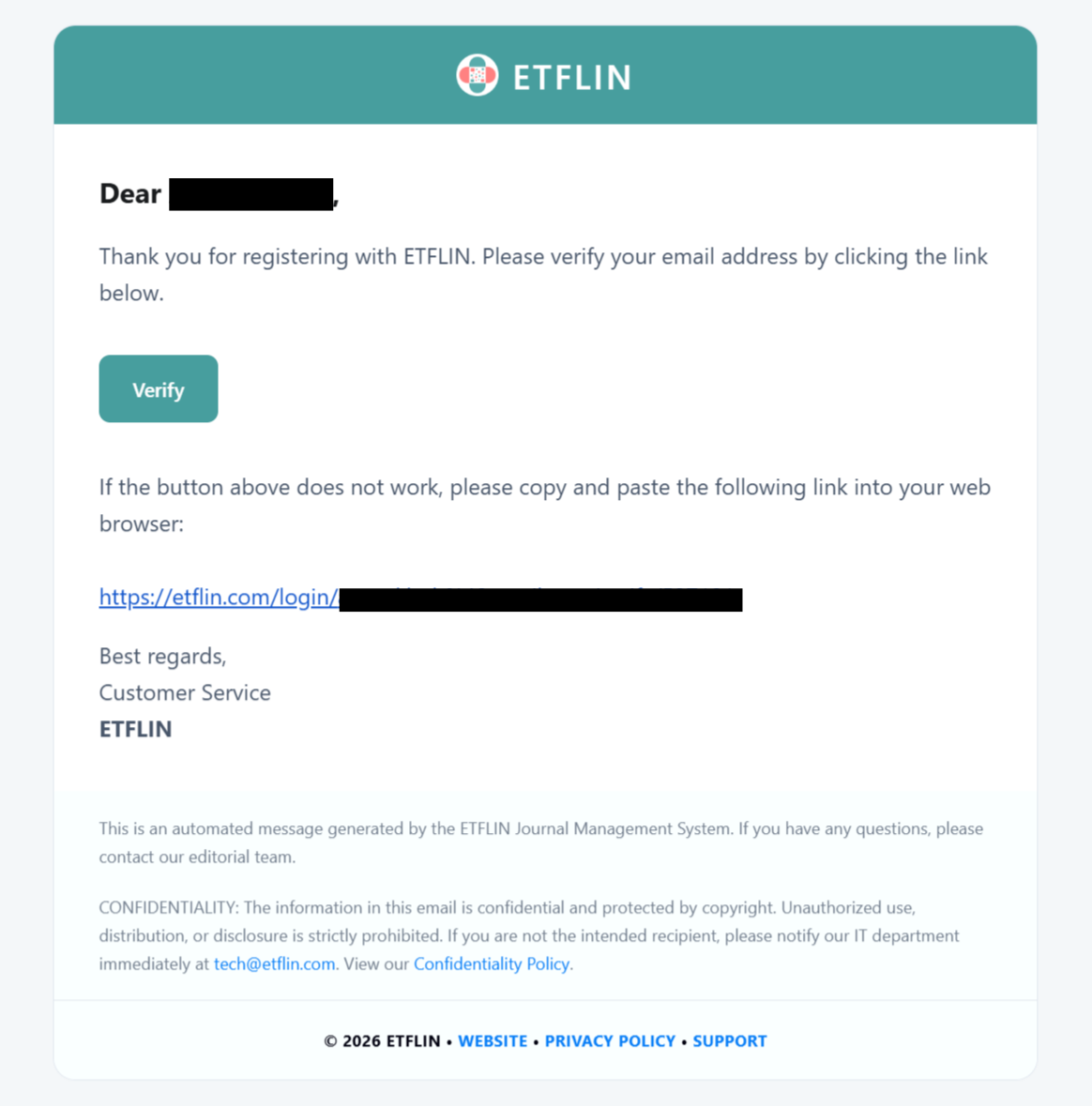
Figure 4. The verification email sent to the user's registered address.
If the code is valid, a "Verification Success" message will appear against a green background. Your account is now active and ready for use. You may return to the Login Page to enter the CORE system. Detailed instructions for article submission can be found on the following page.
Troubleshooting Common Errors
If you encounter issues during registration, please consider the following common errors:
-
Password Mismatch: The confirmation password does not match the initial password. To resolve this, simply re-enter both fields ensuring they are identical.
-
Pending Verification: This notification indicates that the email address is already registered but has not yet been verified. In this case, a new verification email is automatically sent. You simply need to check your inbox and complete the verification process as described previously.
-
Incorrect Email Address: If you do not receive a verification email, you may have entered your email address incorrectly. Since the system cannot detect typos in the email field, please ensure the address is accurate before submitting the form.
For errors regarding mismatched passwords or existing emails, the system will provide an immediate notification. However, if no email arrives, please re-register with the correct email address.